Skip to content

Community Submission

Event management interface for black hawk college

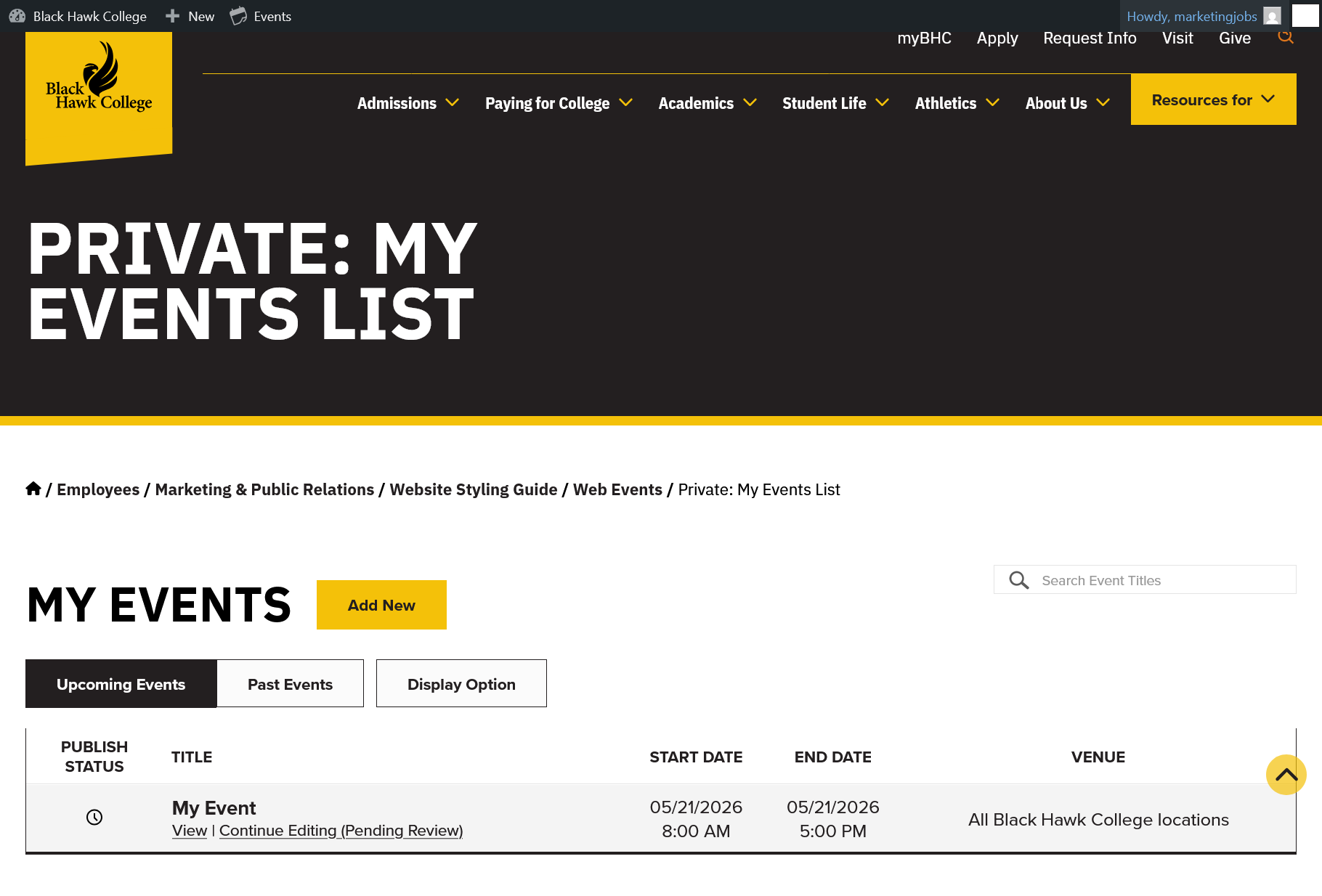
A screenshot of the My Events List page where registered users have access to view and request updates for upcoming and past events.

Effective in the 2026-27 academic year, web events on bhc.edu will be using a community submission model. Submissions will be routed directly to the events calendar giving users more direct access to event content and notifications of publication.

Submission is currently restricted to faculty and staff members. To maintain quality standards and communication, prior registration is required to establish a user account. Registrants are required to use their BHC email to verify their employment status.

Steps for Event Submission

1. Register for a user account on bhc.edu.

To maintain quality, communication and relevance, registration is currently reserved for BHC faculty and staff members. Please register for verification purposes.

Register for a bhc.edu account to start submitting events for the web calendar.

Name(Required)
You must use your college-provided email for registration. This address will not be available for update after initial registration.
Choose a Password(Required)
Strength indicator
Select a password that will be used to log into this site. Please make note of the password so it is available to you after verification.

This site is protected by reCAPTCHA and the Google Privacy Policy and Terms of Service apply.

2. Confirm your email.

After you submit the form in step 1, a message will be sent to your BHC email from web@bhc.edu with an activation link. Click the link to confirm your email.

Registrations that do not contain a BHC email will not receive an activation link.

3. Wait for final verification.

After you’ve activated your email, a final verification is completed by a member of the Marketing/PR team. You will be notified of your final approval via email and receive links to the events submission form. You’ll also be given access to manage your profile and the ability to update limited contact details.

We recommend bookmarking the log in screen for future reference.

4. Gather information about events.

Before submitting an event, gather all relevant information to help streamline the review and publishing process.

  • When is the event? Include the start date/time and end date/time.
  • Who is the event intended for?
  • Where does the event take place? Gather full addresses for off-campus locations.
  • Where can website visitors find more information about the event?
    • Organizer name
    • Phone number
    • Email address
    • Website URL
  • What will attendees do at the event?
  • Are there attendance fees?
  • Is pre-registration required?
  • Do you have relevant images or graphics for the event? Please review the Terms of Submission for image requirements.

5. Submit events.

Once you’ve been approved, access the community submission form and previously submitted events. This area of the website is only accessible to registered users.

For the best results, submit events 2-4 months in advance, especially if you plan to request additional support or promotional materials from Marketing & PR. Submitting events too early can lead to multiple revisions, while submitting too close to the event date may reduce visibility and promotion opportunities.

Required Fields for Event Submission

  • Event title.
  • Event description.
  • Start date/time and end data/time of event(s).
  • Existing venue (please include details in description if a new venue is necessary).
  • Existing organizer (please include details in description if a new organizer is necessary).

Optional Fields for Event Submission

  • Image. If an image is not uploaded, one will be assigned by our team. See terms of submission for permitted and non-permitted content.

Elements Determined by Marketing/PR

  • Category
  • Tags
  • SEO attributes

6. Request additional materials or tasks from Marketing and Public Relations.

Submitting events for the website does not cover additional materials that you may request from Marketing/PR.

Not Addressed through this Request

  • Print collateral (flyers, brochures, postcards, etc.)
  • Updates to web pages on bhc.edu outside of events.
  • Social media marketing.
  • PR or communication.

We suggest submitting your event here first before requesting additional materials or tasks for event promotion. This is to expedite calendar display before other tasks that require more time to complete. Your event can be published before other promotional tasks are ready. Please feel free to reference the event in your Marketing Request.

7. Update event content as needed.

If your event details change, please submit an event update through the My Events List page. This creates a revised draft of your event where you can make the appropriate changes including details updates, cancelation or postponement or date changes. Updates will be reviewed by the Marketing/PR team and published once approved. The existing copy of the event remains live on the website until it is replaced with the new version.

If your event hasn’t been published yet, you can also click the “Continue Editing” link to make updates to events while they are still pending approval.

Please note that drafting an event and completing it later is not permitted through My Events List. Revisions will be lost if not submitted for review within the same visit. More than one pending review is also not permitted to maintain version control.

Terms of Submission

By submitting an event to the Black Hawk College calendar, you grant BHC permission to publish, display and distribute the submitted information on its website and related platforms.

You agree that all information provided is accurate to the best of your knowledge at the time of submission and that you will notify the Marketing/PR Department of any updates or changes to the event in a timely manner.

You acknowledge that the Black Hawk College Marketing Department reserves the right to review, edit or revise submitted event content, including titles, descriptions, images and categorization, to ensure clarity, consistency and alignment with institutional standards. Content is subject to the Editorial Style Guide and website standards.

You agree not to submit any content that is copyrighted, proprietary or otherwise restricted without proper permission, and you affirm that you have the necessary rights to use any text, images or materials included in your submission.

Black Hawk College Marketing/PR Department reserves the right to decline or remove any event submission at its discretion.

Prohibited Content

The following content is not permitted for community event submissions:

  • Events not associated with or sponsored by Black Hawk College.
  • Content that is not tied to a specific date, time or event.
  • Course schedules, registration listings or recurring academic information already published elsewhere on bhc.edu or affiliated websites, including college credit and non-credit course offerings.
  • Written or visual content containing explicit, adult or inappropriate material.
  • Private, confidential or internal-only information not intended for public audiences.
  • Copyrighted images, media or written content used without permission from the owner.
  • Images that do not meet minimum accessibility, size, quality or content standards.
  • PDF documents, unless the file is an ADA-compliant form or intended as a downloadable resource. Otherwise, please copy the information directly into the event description.
  • Custom formatting or embedded content including scripts, iframes, SVG files, video or audio embeds. Unsupported code and media may be removed during the review process. Please contact the Marketing & PR team if you have a specific publishing need.

Frequently Asked Questions

Who is allowed to submit events on bhc.edu?

Only faculty and staff members are currently allowed to submit events to the bhc.edu web calendar. Prior registration and verification is required.

If you’re a student, please speak to your club organizer or another faculty/staff member to have relevant events submitted.

How do I reset my password?

Access the login screen that you were emailed after your user account was approved.

Below the area for entering your username and password, click the link that says “Lost your password?” to have a reset link emailed to your account email.

If you haven’t lost your password, but wish to change it, go to password settings in your profile, accessible from your name from the upper-righthand corner once you’re signed in.

Will I use BHC network credentials and DUO to sign in to bhc.edu?

No, logging into bhc.edu isn’t dependent on SSO (BHC credentials) and/or DUO mobile authentication.

You must use your bhc.edu email address to verify that you are a faculty or staff member, but your password will not update when you make changes on your college SSO account.

Please make note of your bhc.edu password in a secure location for your records at the time of registration.

How do I submit recurring events?

Recurring events or series can be setup upon request by a team member. Include details in the submission notes and scheduling requests and a team member will contact you with recommendations.

What should I do if an event is canceled, postponed or needs updates?

Event Updates

Please submit an event update from the My Events List page. This will allow you to submit a revised copy of the event with added or revised content including details, event status and date. The pending draft will be reviewed by our team prior to publishing and you’ll receive a notification when it’s been published.

If your event hasn’t been published yet, you can also click the “Continue Editing” link to make updates to events while they are still pending approval.

The event update window will open in WordPress. Make updates to date, event description, featured image or event status. Most content can be updated by clicking on the blocks in the main content area. Event status and featured image are updated from the right column.

You can also make comments in the editorial comments section listed in the Meta Boxes area at the bottom of the page.

When you’re done making changes, click the “Submit for Review” button in the upper righthand corner.

Please note that drafting an event and completing it later is not permitted through My Events List. Revisions will be lost if not submitted for review within the same visit. More than one pending review is also not permitted to maintain version control.

Cancelation or Postponement

If your published event is canceled or postponed, it will remain live with a label representing its new event status to let attendees know it won’t be happening as expected.

Events that haven’t been published, but need to be canceled can be deleted upon request by a team member or by indicating such in the submission notes or an editorial comment inside the event editor.

Event Update Assistance

For questions regarding updates, contact a team member or email web@bhc.edu.

What should I do if my event requires a form, pre-registration or tickets?

If you already have a form created, we’re happy to include a link as part of the event’s description. We recommend using Microsoft Forms for customized data collection.

If you’re just looking to get a headcount or remind users to attend, some additional options are available through the website for limited or unlimited attendees to an event. Include details in the submission notes and scheduling requests and a team member will contact you with recommendations.

How will I know when my events are published?

When your event is published, you’ll receive an email notification from web@bhc.edu. This message will include:

  • Event link.
  • Title.
  • Approving team member.
  • Related links.

How do I update my profile?

To view or update your profile follow this link.

If you’re not signed in, you’ll have to authenticate with your (bhc.edu) credentials first. Once logged in, you can update your name, but other fields like email require a manual update from a team member.

I’m trying to update the event description, but WordPress won’t let me. What do I do?

Click on the block (text in the content area). Along the top of the window, you’ll see options for the text block.

Click “Convert to Blocks.” Attempt to edit the content, apply formatting or links from the block options area.

Or you can also click the “Edit” box and make changes in a pop up window. Click save in the popup window before submitting for review.

More to Explore

Contact

Marketing & Public Relations Department