Email Accessibility
Accessible Emails
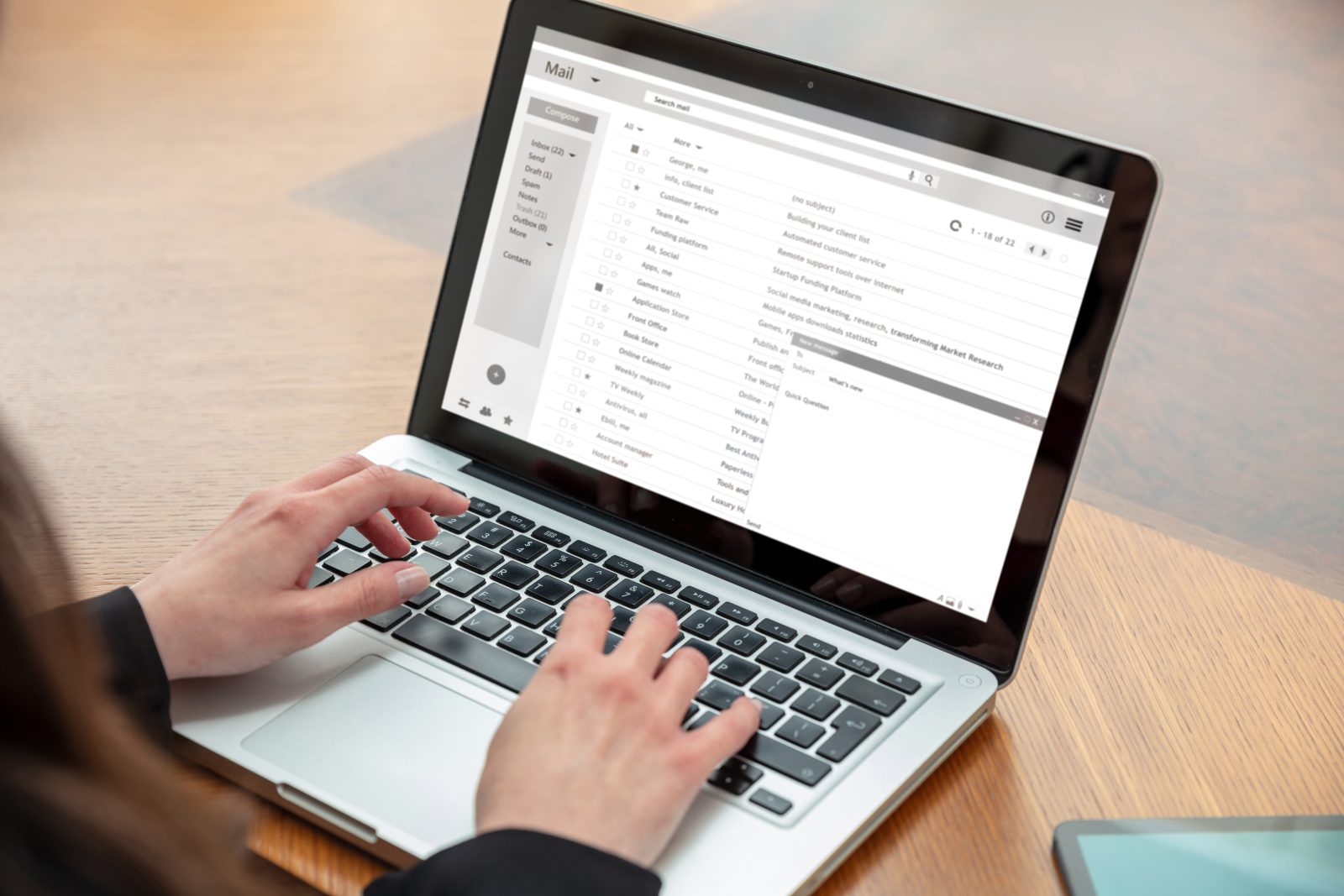
Creating accessible emails ensures that all students, employees, and community members, including those using screen readers, mobile devices or assistive technology, can access important information.
Why Accessible Emails?
- Support students and staff with disabilities.
- Improve readability on mobile devices.
- Reduce confusion and follow-up questions.
- Help the institution meet accessibility and compliance standards.
Accessibility benefits everyone, and starts with clear, readable communication.
Attachments
Attachments to emails are also required to be accessible if they are intended to communicate information.
If possible, summarize key information directly in the email in addition to the attachment.
Recommended Check Points
Before sending an email out to a large audience, consider testing the email to yourself or a smaller group.
- Review the email on a mobile device.
- Send the email to an Outlook AND a Gmail account if the email will be sent to users outside of Black Hawk College.
- Turn images off to see if the message still makes sense.
- Ensure all critical information is readable without graphics.
- Make sure links go to their intended destination.
More to Explore

Accessibility at Black Hawk College
Black Hawk College offers faculty and staff resources to ensure accessibility for its students and employees.

Employees
Online Employee Resources serves as a central hub for tools, information and support for Black Hawk College faculty and staff.
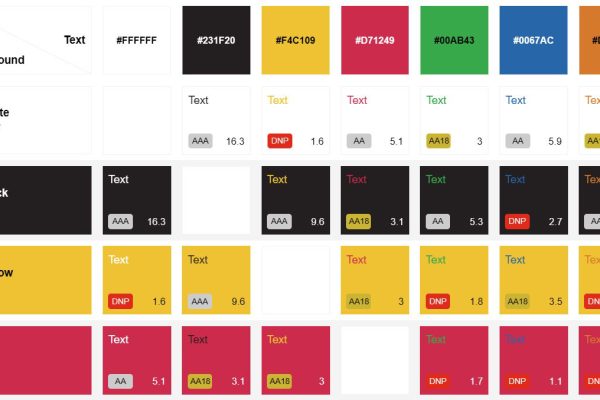
Contrast
By getting color contrast right, Black Hawk College makes its online spaces easier for all students, staff and visitors to use.